

What you need
Paste an API key, not an OAuth access token from a Cal.com platform app. A token verifies once and then expires mid-call, which is why Roark checks for the
cal_ prefix and refuses anything else.Connect the account
1
Create the API key in Cal.com
In Cal.com, open Settings → Developer → API keys, create a key, and copy it. It is shown once.
2
Add Cal.com to your agent
In Roark, open your agent built on Roark, go to the Tools tab, and in the Calendars card choose Add Cal.com.Give the account a name, pick the time zone the business keeps, and paste the key. Verify and connect checks it against Cal.com before anything is stored — an invalid key is refused on the spot and no connection is created.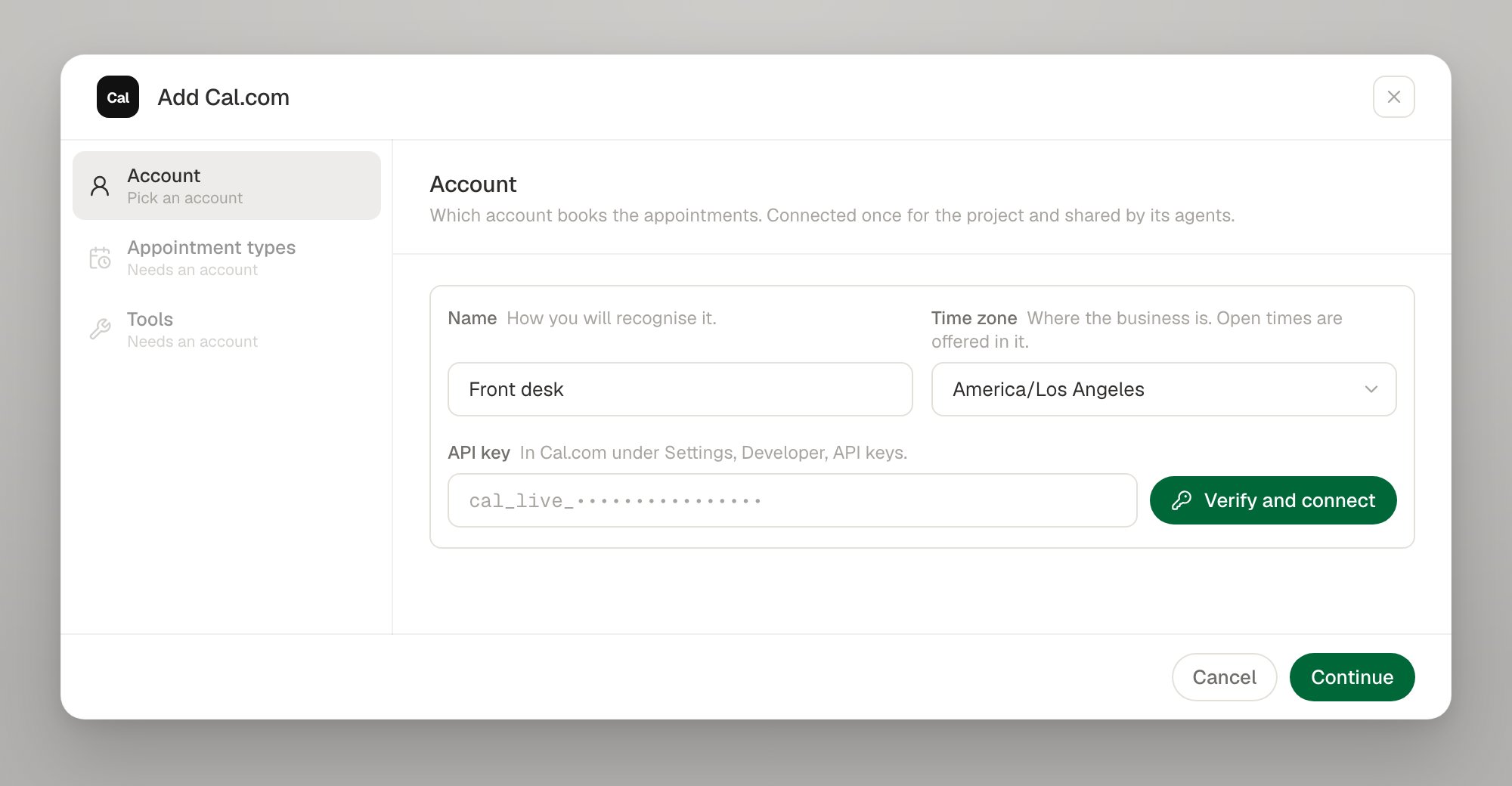
3
Pick the event types the agent may book
Each appointment type points at one of the account’s event types and carries a line telling the agent when it fits. Roark reads your event types live, so one added in Cal.com since you connected is already in the list.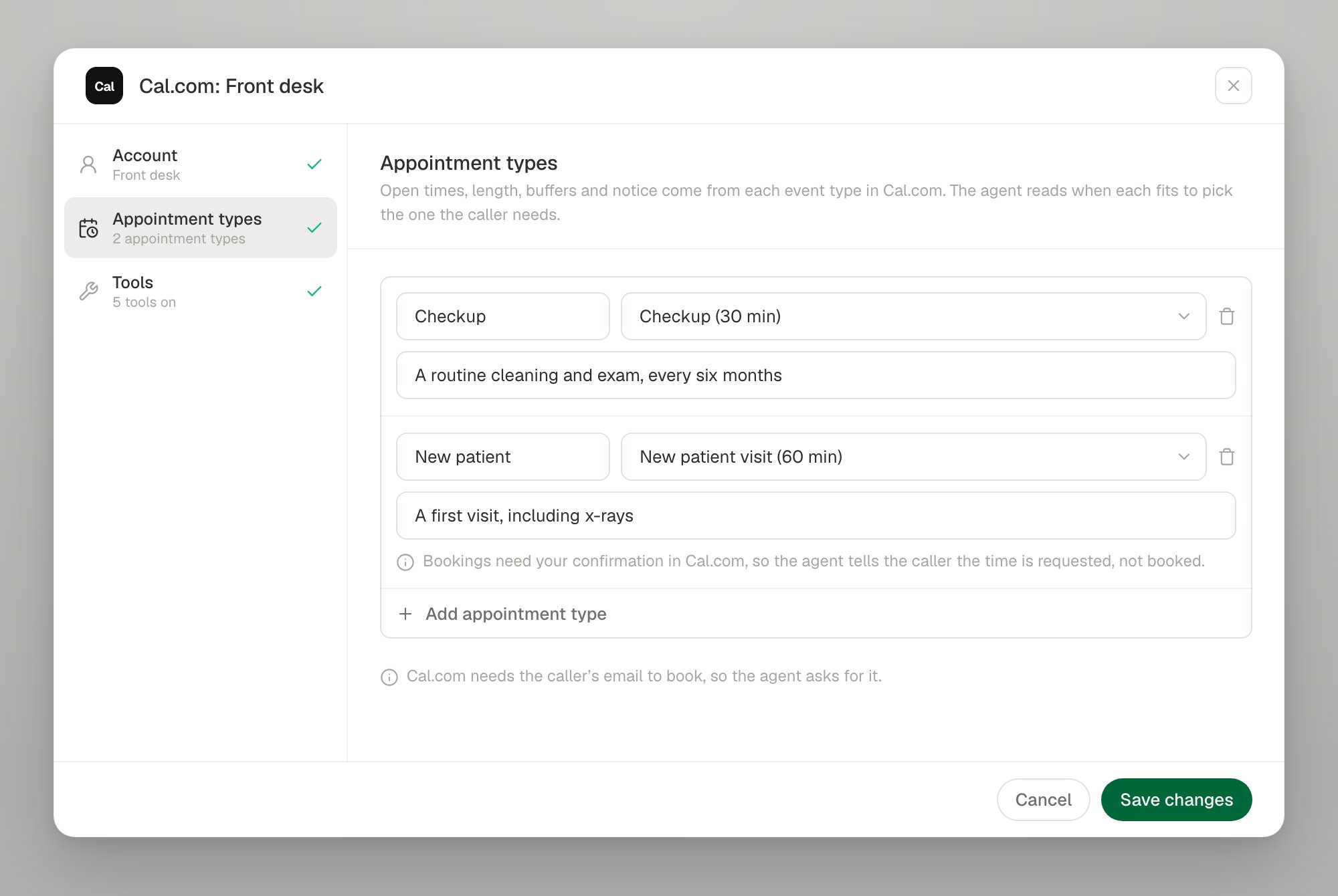
4
Switch on the tools
Cal.com supports all six actions. Switch on the ones the agent should be allowed to take — the three that write are marked Changes data.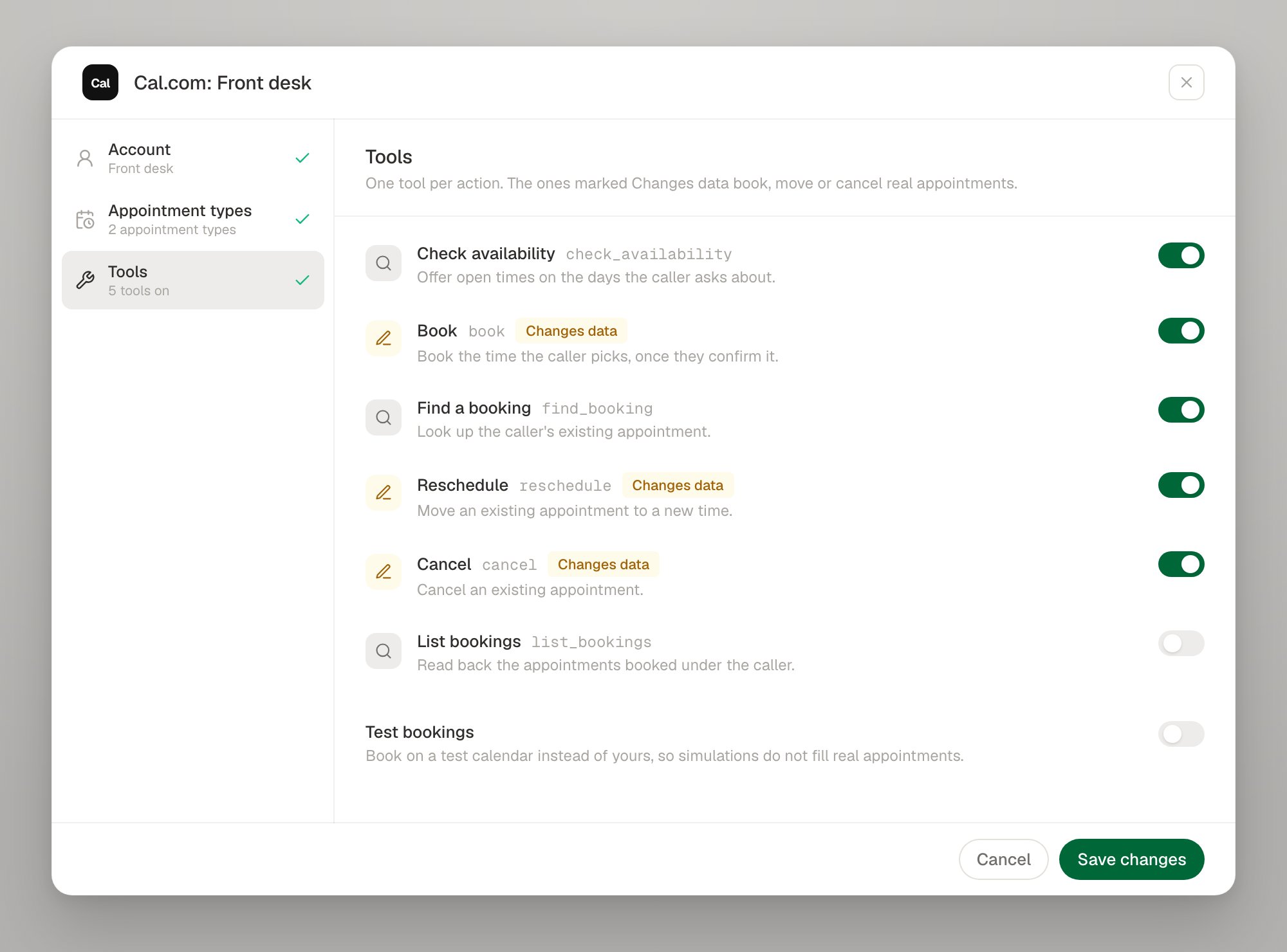
What Cal.com decides, and what Roark does
Event type details worth knowing
Event types that need confirmation
Event types that need confirmation
An event type with a confirmation policy accepts the booking but does not confirm it. Roark returns
PENDING_CONFIRMATION, and the sentence the agent reads says the time is requested. The setup dialog flags these event types while you configure them.Event types with several durations
Event types with several durations
Where an event type offers a choice of lengths, pin one on the appointment type (
durationMinutes). Leave it off and Cal.com uses the event type’s own length.The caller's email
The caller's email
Cal.com needs an attendee email to book, so the agent asks the caller for one. An individual event type can declare further required booking fields of its own — Roark reads those when you configure the appointment type, so you find out at setup rather than mid-call.
Notes the caller asks to pass on
Notes the caller asks to pass on
Anything the caller asks to pass on is stored on the booking’s metadata (
roarkNotes), which is always present and reaches the booking’s webhook and API — rather than a custom booking field whose slug differs per event type.Booking references change on reschedule
Booking references change on reschedule
Cal.com issues a new reference when an appointment is moved. The reschedule tool returns the new one and the agent reads it back.
Cancellation reason
Cancellation reason
A caller who gives no reason is recorded as Cancelled by the caller, which is what shows in Cal.com and in the cancellation email the attendee receives.
Rotating the key
Paste a new key on the connection. It is verified before it is stored, and a verified key returns a connection inINVALID_CREDENTIALS to ACTIVE.
Troubleshooting
Next steps
Calendars overview
The six tools, slot ids, test bookings and limits
Tools as code
Declare the same setup in your config
Build an agent
The agent that will do the booking
Test tool calls
Exercise booking paths in simulations