

Overview
Call History is your central hub for browsing, searching, and analyzing every call that flows through Roark. Each call is automatically transcribed and analyzed the moment it arrives.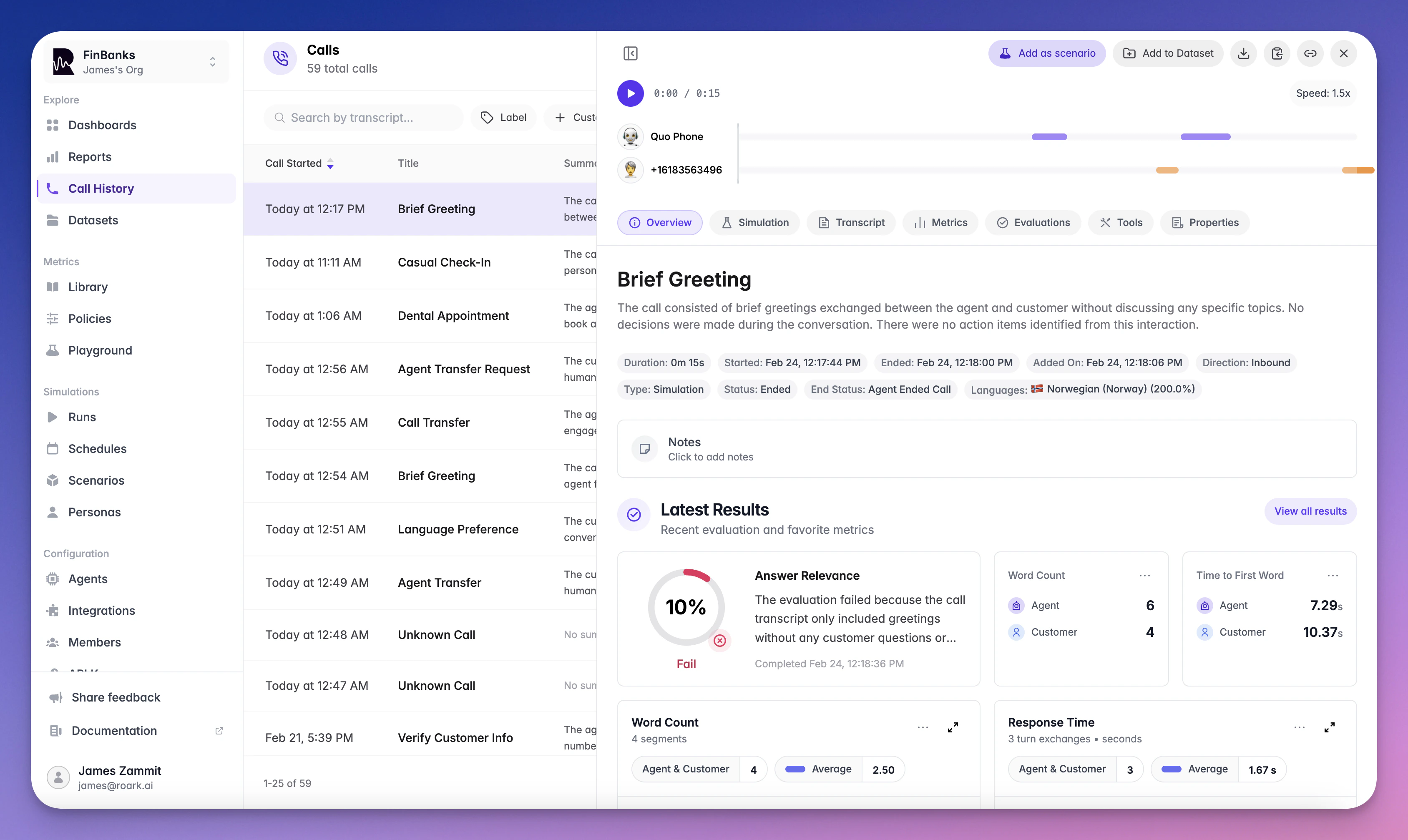
Getting Calls Into Roark
Via Integration
Connect a voice platform (Vapi, Retell, or LiveKit) and calls sync automatically. See Integrations for setup guides.Via API
Upload a call recording using the Node.js or Python SDK:What You See Per Call
Each call opens into a detailed view with the following tabs:- Overview: AI-generated summary, key stats (duration, direction, status, end status), participants, and labels
- Transcript: Speaker-diarized conversation with timestamps, tool call annotations, and sentiment overlay
- Metrics: All collected metric values organized by package (call-level, segment-level, turn-level)
- Properties: Custom metadata passed with the call, filterable and searchable
- Tools: All tool/function invocations with inputs, outputs, and error details
Filtering and Search
Find exactly what you need:- Full-text transcript search across all calls
- Filters: duration, end status, call type (live vs simulation), agent, labels, analysis status, and custom properties
- Saved views for quick access to frequently used filter combinations
Deep Linking with URL Parameters
Share filtered views or link directly to relevant calls from external systems using URL query parameters. Custom properties can be filtered using dot notation:Supported Operators
Examples
Direct Call Linking
When a filter returns only a single matching call, Roark automatically opens that call’s detail view. This enables direct deep linking to specific calls using unique identifiers:Use Cases
- Direct call access: Link to a specific call using a unique identifier (e.g.,
custom_call_id); the call opens automatically when only one match is found - External system integration: Link from CRMs, dashboards, or internal tools directly to relevant calls
- Bookmarks: Save filtered views for quick access to specific call subsets
- Team sharing: Share pre-filtered views with teammates for collaboration
Collecting More Metrics
Roark automatically analyzes transcription, speech patterns, and sentiment for every call. To collect additional metrics (like custom LLM evaluations, compliance checks, or business KPIs) configure metric collectors or test metrics in Studio. Available out-of-the-box analysis includes:- Sentiment tracking and 64+ emotion detection
- Interruption and overlap detection
- Speech pause and silence analysis
- Vocal cue detection (raised voice, frustration, etc.)
- Repetition detection
What’s Next
Custom Metrics
Define custom metrics for your calls
Policies
Automate metric collection
Reports
Build analytics from call data
Dashboards
Organize reports into views