

- In an Improv flow, the happy path and each edge case carry their own Environment chip.
- In a Scripted flow, every path derived from the graph is a variant with the same chip in the right-hand rail, and Add variant for path runs the same path again in a different environment.
Roark presets
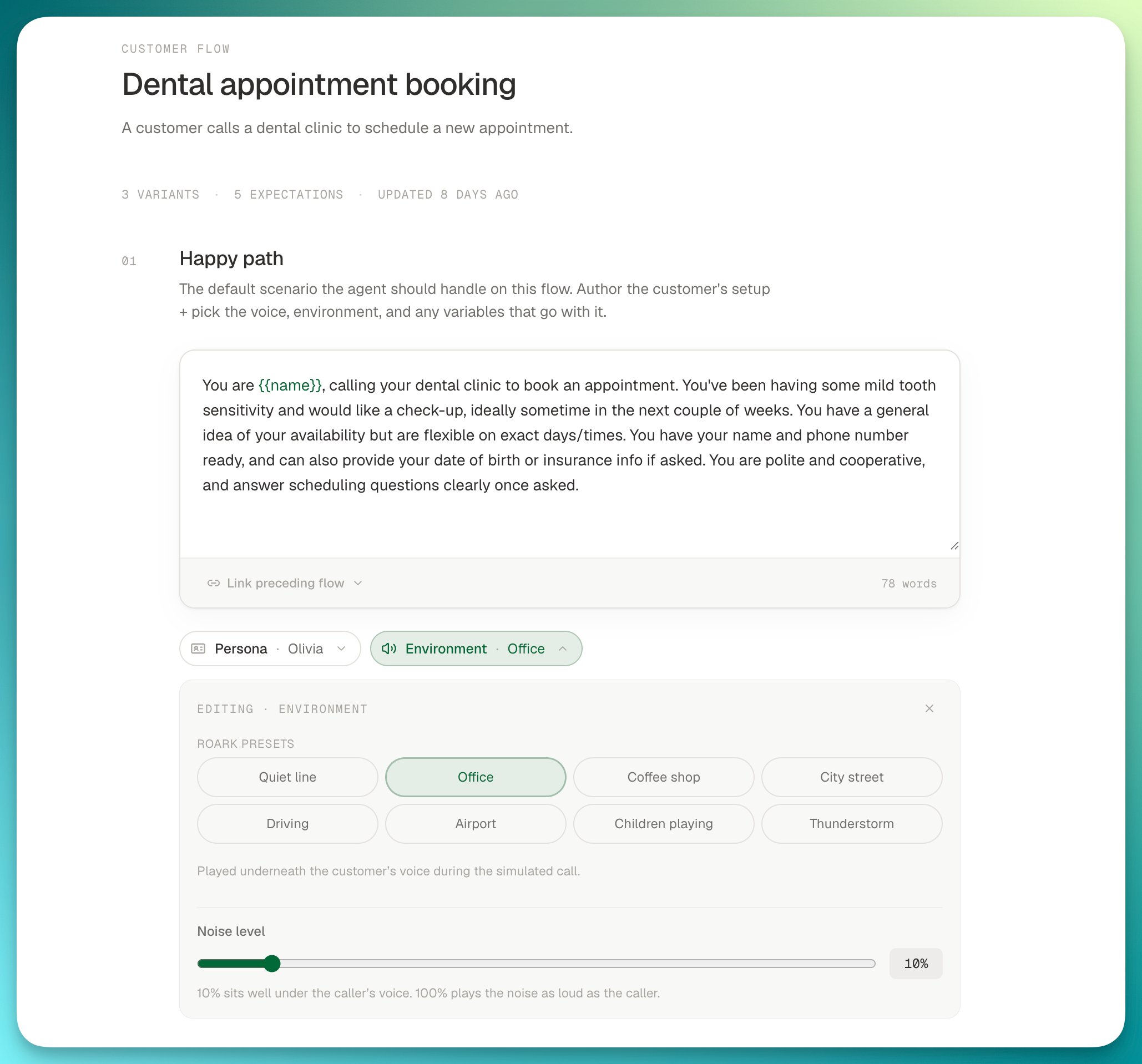
Every project sees eight presets, one per noise bed, all playing at the default level:
Presets are read-only. You cannot rename, re-level or delete them, and they keep their level on every deploy. Everything else about an environment, you own.
Noise level
The level is how loud the bed plays relative to the customer’s voice. In the flow editor it is a slider from 0% to 100%; over the API it isbackgroundNoiseVolume, a gain from 0 to 1.
- 10% is the default and what every preset plays at. Roark first normalises each noise asset to a fixed loudness, then applies the level, so 10% lands roughly 20 dB under phone speech: clearly audible in the background without competing with the caller.
- 100% plays the noise as loud as the customer. Use it to find out where your agent’s endpointing and transcription break down, not as a realistic call.
- The level is a linear gain, not a perceptual scale. 50% is close to speech level, not half as loud as 100%.
Setting the environment in the flow editor
Each variant carries a Persona · Environment · Variables chip strip: under the customer setup in an Improv flow, and on each path’s variant card in the rail of a Scripted flow. The Environment chip opens a panel that lists the Roark presets and, once you have some, Your environments.1
Pick a bed
Click a preset chip. The variant runs in that environment immediately, at the default level.
2
Tune the level
Drag Noise level. As soon as it leaves the preset’s own level, the panel offers Save as your environment with a name filled in for you, such as “Office (30% noise)”. Overwrite the name if you want, then click Save environment. Roark creates a project environment with that bed and level and binds the variant to it. The preset itself is untouched.
3
Reuse or adjust it later
Your environments appear as chips on every variant in the project. Pick one and the same panel lets you rename it, change its level or delete it. If you drag a preset to a level you have already saved, the panel offers Use it instead of creating a duplicate.
- Edge cases inherit the happy path’s environment until you pick one for them; the chip reads “Office (inherited)”. Choose Inherit to go back to inheriting.
- A change to one of your environments applies everywhere it is picked. It is a shared row, not a per-variant copy. To give one variant a different level, save a second environment.
- An environment in use cannot be deleted. Point the variants that use it at another environment first; the panel tells you how many there are.
- Runs keep what they were built with. Roark snapshots the environment when a run is created, so editing or deleting it later never changes a run already in flight or its report.
Config as code
In an Improv flow defined as YAML, the happy path and any edge case reference an environment by its display name, exactly as it appears in the panel:API
Manage environments programmatically to keep them alongside your test suite or to set up a project from a script. Full request and response schemas are in the API reference.- List environments:
GET /v1/simulation/environmentreturns your environments and the Roark presets - Get an environment:
GET /v1/simulation/environment/{environmentId} - Create an environment:
POST /v1/simulation/environment - Update an environment:
PUT /v1/simulation/environment/{environmentId} - Delete an environment:
DELETE /v1/simulation/environment/{environmentId}
backgroundNoiseVolume is optional and defaults to 0.1:
environmentId:
backgroundNoise accepts NONE, OFFICE, COFFEE_SHOP, CITY, DRIVING, AIRPORT, CHILDREN_PLAYING or THUNDERSTORM.
Errors to handle:
Deleting is a soft delete: the environment disappears from lists and cannot be picked for new runs, but runs already built keep their snapshot of it.